
Getting text into a polished PowerPoint shouldn’t require creating yet another account. Whether it’s meeting notes, a blog draft, or a product brief, there are now tools that convert plain text into presentation slides instantly — no signup, no credit card, no friction.
This guide covers how text-to-PPT generators work, what to look for in a free tool, and how to get the best results from your input text.
How Text-to-PPT Generators Actually Work
A text-to-PPT generator takes unstructured or semi-structured text and converts it into slide decks. Most tools use large language models (LLMs) to:
- Parse the input — identifying headings, key points, and supporting details
- Structure the content — deciding how to split text across slides
- Apply design — choosing layouts, fonts, and color schemes
- Generate visuals — adding icons, images, or charts where appropriate
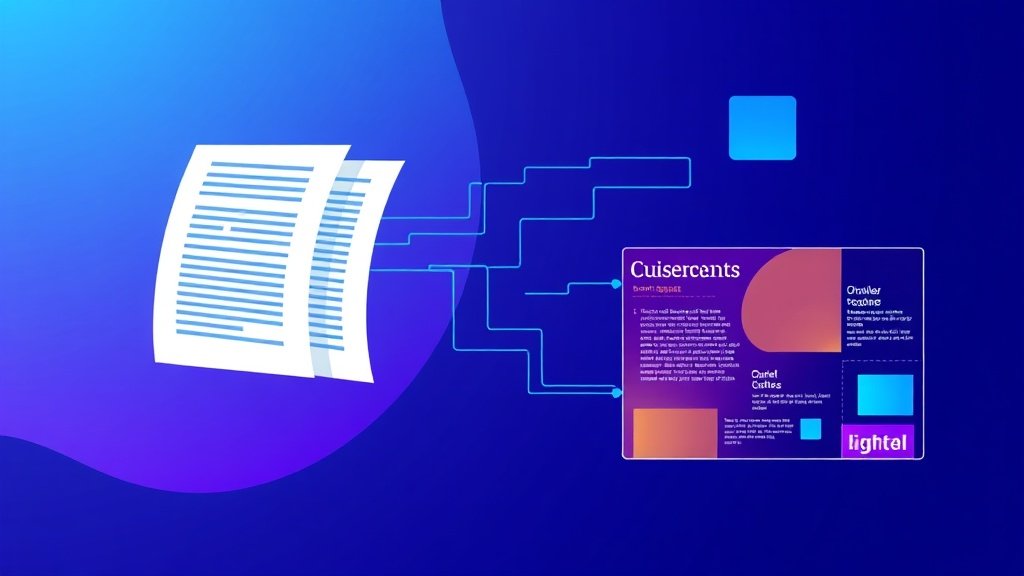
The quality of the output depends heavily on the quality of the input. A wall of text with no structure produces worse results than a clear outline with distinct sections.
What “No Signup” Actually Means
Many tools claim to be free but require an account before generating anything. A genuinely no-signup tool lets you:
- Paste text directly on the homepage
- Generate slides immediately
- Download or edit without creating an account
SlideMaker is one of the few tools that works this way — type a topic or paste text, generate slides, and export as PPTX without ever creating an account.
Step-by-Step: Converting Text to a Presentation
Here is a straightforward process that works with most text-to-PPT tools:
1. Prepare the Text
Before pasting text into any generator, clean it up:
- Remove fluff — cut filler sentences that don’t add information
- Add structure — use headings or bullet points to separate sections
- Keep it focused — one topic per section works better than a stream of consciousness
A 500-word document with clear sections produces better slides than a 2,000-word essay with no formatting.
2. Choose the Right Tool
Not all generators handle text the same way. Consider:
| Feature | Why It Matters |
|---|---|
| No signup required | Reduces friction, protects privacy |
| PPTX export | Lets you edit in PowerPoint or Google Slides |
| Design customization | Adjust colors, fonts, layouts after generation |
| AI-powered structuring | Automatically splits content into logical slides |
3. Paste and Generate
With SlideMaker, the process is:
- Open slidemaker.app (no account needed)
- Type a topic or paste existing text
- Click generate
- Review the slides in the built-in editor
- Customize colors, layouts, or content
- Export as PPTX
The entire process takes under two minutes for most documents.
4. Refine the Output
AI-generated slides are a strong starting point, not a final product. After generation:
- Check slide flow — make sure the narrative progresses logically
- Trim overcrowded slides — if a slide has more than 5 bullet points, split it
- Add specific data — replace generic statements with actual numbers or examples
- Verify formatting — ensure fonts and colors are consistent
Best Practices for Text Input
The difference between mediocre and impressive AI-generated slides often comes down to the input text. Here are patterns that produce better results:
Use an Outline Format
Instead of pasting a full paragraph:
“Our quarterly sales increased by 15% due to expansion into new markets and improved customer retention strategies that focused on personalized outreach and loyalty programs.”
Use structured input:
Q3 Sales Results
– Revenue up 15%
– New market expansion (3 regions)
– Customer retention improved
– Personalized outreach program launched
Be Specific About the Audience
If the tool accepts a prompt alongside text, specify who the presentation is for. “Board meeting summary” produces different slides than “team standup recap.”
Keep Sections Balanced
If one section has 200 words and another has 20, the AI will create uneven slides. Aim for roughly equal section lengths.
Common Use Cases
Text-to-PPT generators are particularly useful for:
- Meeting notes to recap decks — turn raw notes into shareable slides for absent team members
- Blog posts to presentations — repurpose written content for webinars or talks
- Research summaries — convert academic notes into defense or progress presentations
- Project proposals — turn a text brief into a visual pitch
- Training materials — convert documentation into slide-based training
For research-focused presentations, check out this guide on AI presentation tools for researchers.
Free vs. Paid: What You Actually Get
Most free text-to-PPT tools offer:
- Basic slide generation from text
- Limited template options
- PPTX export
- 3-10 presentations per month
Paid tiers typically add:
- Custom branding
- Premium templates
- Higher generation limits
- Team collaboration features
For individual use — preparing a class presentation, a quick pitch, or a meeting recap — free tools are more than sufficient. SlideMaker keeps its core generation free without limits, which makes it a solid choice for anyone who needs slides regularly.
How SlideMaker Handles Text-to-PPT
SlideMaker’s approach is intentionally simple:
- No account wall — generation starts immediately
- AI structuring — text is automatically split into logical slides with headings
- Built-in editor — adjust any slide after generation without switching tools
- PPTX export — download and open in PowerPoint, Google Slides, or Keynote
- Chart support — data in text can be turned into visual charts directly
The editor also supports changing backgrounds, fonts, and layouts after the AI generates the initial deck. For more on customization, see this guide on how to change the background of a presentation in SlideMaker.

Tips for Getting Professional-Quality Results
Even with a free tool, a few extra minutes of refinement can make AI-generated slides look polished:
- Stick to one font family — consistency looks more professional than variety
- Use high-contrast colors — dark text on light backgrounds (or vice versa) for readability
- Limit text per slide — aim for 6 words per bullet, 6 bullets max per slide
- Add a title slide and closing slide — frame the presentation properly
- Include page numbers — especially for longer decks
Alternatives to Consider
While SlideMaker works without signup and generates PPTX directly, here are other options:
- NoteGPT — no signup, supports PDF and text input
- PPT.AI — free generation with no account required
- SlidesGo — AI-powered but requires an account (3 free per month)
- SlideSpeak — accepts multiple file formats, free tier available
Each tool has trade-offs in design quality, export options, and generation limits. For a broader comparison, see this article on the best AI presentation tools in 2026.
Bottom Line
Text-to-PPT generators have matured to the point where converting raw text into a presentable deck takes minutes, not hours. The best free tools — especially those that skip the signup step — remove every barrier between having content and having slides.
For a fast, free option that works directly in the browser with no account required, SlideMaker handles the full workflow: paste text, generate slides, customize in the editor, and export as PPTX.