
How to Change Background of Presentation in slidemaker.app/
If you are using Slidemaker for the first time, one of the confusing questions you might be asking yourself about your AI generated presentation is? How do I change background in Slidemaker? Worry no more, we have the answer for you below.
How to Change Slide Background in Slidemaker
Click on the ‘background’ icon located on the upper part of your current slide. Once you click it, you will see the option to either change the background color, blend two or more colors using the gradient option, or upload your own preferred image.
To add to this, Slidemaker.app also makes provisions for stock images and you can also reset the themes.

Let’s take it one after the other.
Changing Slidemaker Presentation Background color:
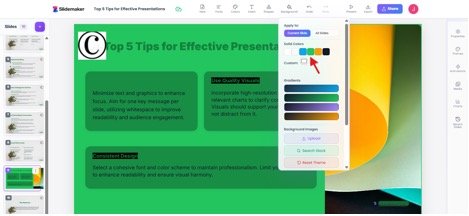
Once you click on the slide whose background color you want to change, go to solid color, then choose the one you want to change to. You will see the changes. In this case, we change from white background color to green.
Using a Blend of Colors:
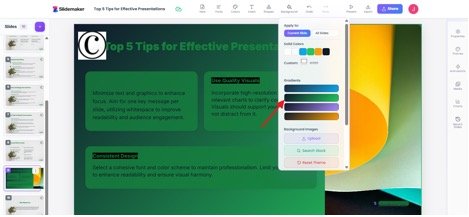
You can also use a blend of two or more colors under the gradient option. Here is an example below.
Upload your Personalised Image:
You can also choose a personalized image like a company image. By clicking on ‘background’, then click on ‘upload’ under ‘background image’ to change background in Slidemaker.
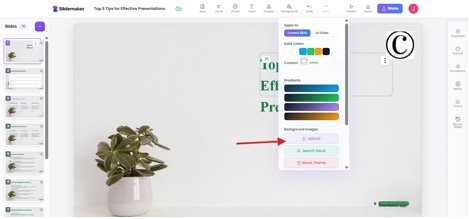
Then upload your image. Look below we have a new background.

Use Stock Image:
You can also decide to use a stock image made available by slidemaker.app/. Search for the image you prefer in under the ‘search stock’ and click insert when you find the one you like.
Note: You can click the ‘load more’ in case you do not like the ones you have seen.
Here is the one we picked.

This is the new background chosen in the Slidemaker background settings.

Choosing Background Image from Gallery:
You can decide to shift from using plain solid images to using artistic images from the gallery.

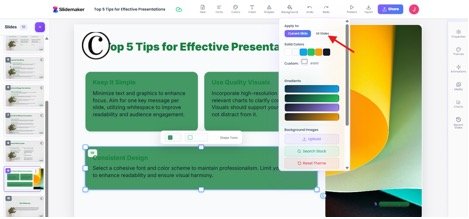
Note: You can apply any background change you made on one slide to all the slides. Just click on all the slides under the ‘apply to’ option.
Tips to Consider When Making Slidemaker Presentation Background Changes
1. Keep It Simple
A clean, minimal background prevents distraction and keeps your audience focused on your content.
2. Ensure Strong Contrast
Choose a background that makes your text easy to read. Light text works best on dark backgrounds, and dark text works best on light backgrounds.
3. Stay Consistent Across Slides
Using different backgrounds on every slide can look messy. Stick to one or two styles to maintain a professional, unified look.
4. Use Colors That Fit Your Theme
Pick background colors that match your brand, topic, or presentation mood. Avoid overly bright or clashing colors.
5. Avoid Busy or Overly Detailed Images
If using images, choose simple, subtle ones. Busy photos make text difficult to read and weaken your message.
Let us know if you have questions in the comment section. You can also read our on how to generate AI presentations using slidemaker.app/ if you missed it.