
Gone are the days when crafting a compelling PowerPoint presentation demanded hours of design tweaks, content formatting, and slide alignment. In today’s fast-paced digital world where time is the ultimate currency, it is very beneficial to be able to communicate ideas in a very clear manner. While also cutting down time on the preparation processes like to convert text to presentation.
That is why the traditional method of manually building presentations, though familiar and flexible, is rapidly being outpaced by AI PowerPoint generator. Ones that can design, write, and organize professional-grade slides in minutes
Across industries, the Presentation Evolution Debate is reshaping how businesses, educators, and entrepreneurs deliver information. Traditional PowerPoint presentations still offer control, creativity, and the warmth of human expression, but they often require tedious effort and technical know-how.
Meanwhile, AI-driven automatic presentation tool are transforming this landscape. This by introducing automation, intelligent design, and data-backed storytelling. It enables even non-designers to create polished, persuasive presentations almost instantly.
AI-powered platforms analyze input content, select the best layouts. They also suggest visuals, and even tailor tone and structure to suit audience needs. The result? A seamless blend of creativity and computation that elevates both productivity and engagement.
Yet, beyond speed and convenience, these tools redefine how ideas come to life. By dynamically adapting to context, theme, and data flow in ways that traditional slide-building simply cannot match.
In this guide, we’ll walk you through how to create a PowerPoint presentation automatically using AI. You’ll discover how this new wave of presentation technology simplifies complex tasks, enhances visual storytelling, and saves valuable time. And while several tools now claim to automate slide creation, one platform to use is slidemaker.app/. Due to its power, simplicity, and precision in crafting professional, captivating slides effortlessly.
Let’s explore how slidemaker.app/, is redefining what it means to convert text to presentation that inspire, inform, and impress.
slidemaker.app/ the Best AI Presentation Maker
slidemaker.app/ is a free web application for creating slides for presentation. Interestingly, users do not need to create an account. Although you might have an account to access some features.
Here is how to create an account:
On your browser search the url ‘slidemaker.app/’.
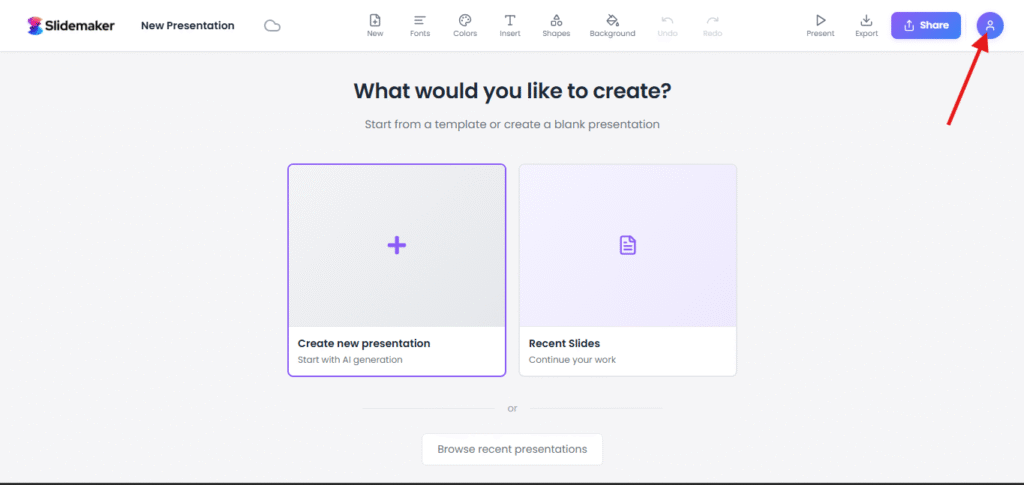
On the resulting page, click the icon shown in the image above.
Note: It is absolutely free.
Then enter your details to create your account as shown in the image below, you also have to specify whether you are creating the account for an organization or for personal use.

You will need to verify using OTP.
After successfully submitting the OTP, your account is created successfully.
Creating AI Generated Slides with slidemaker.app/: an AI PowerPoint Generator
Here is a step by step guide to make slides automatically using slidemaker.app/
- In your browser, type slidemaker.app/. The page below is displayed.
- Click on ‘get started for free’.
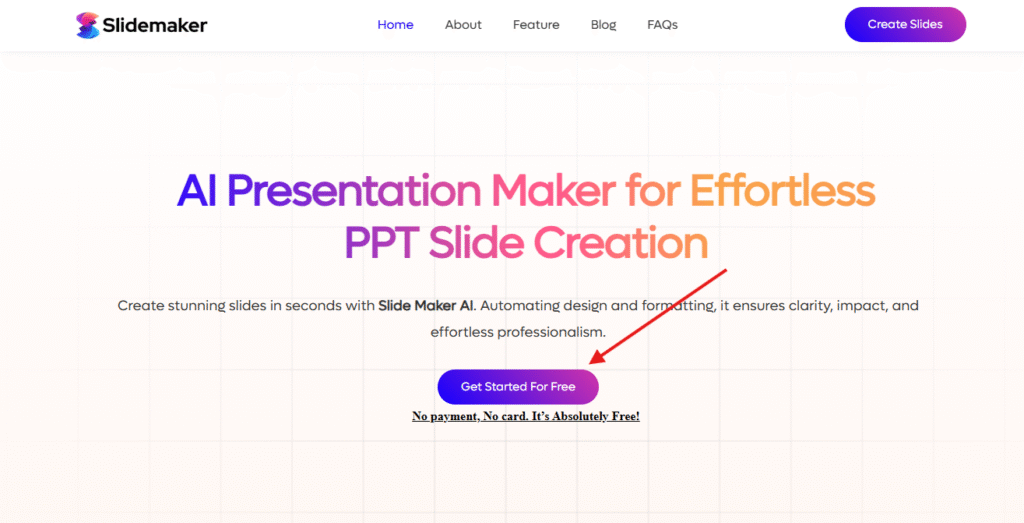
- In the new page that appears, click on ‘new presentation’ if you want to create a new presentation.

- In the next page that appears,
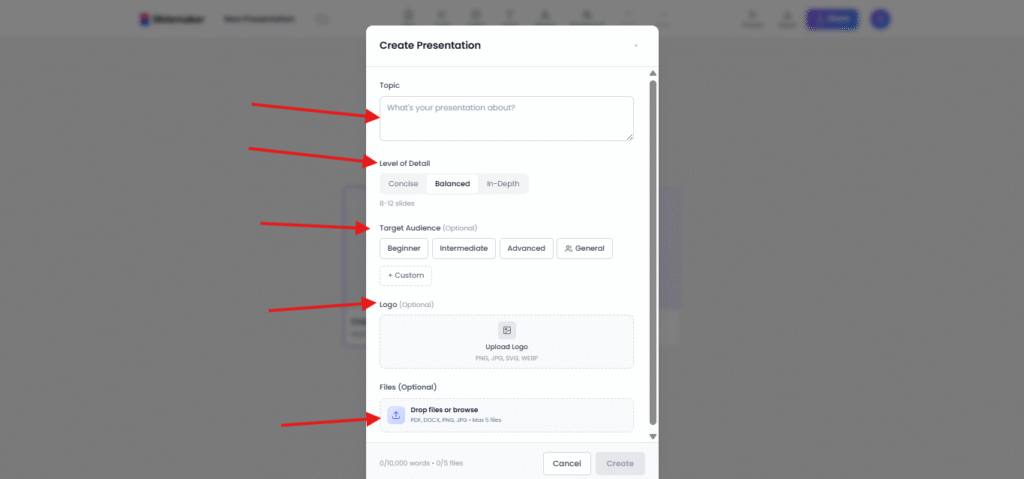
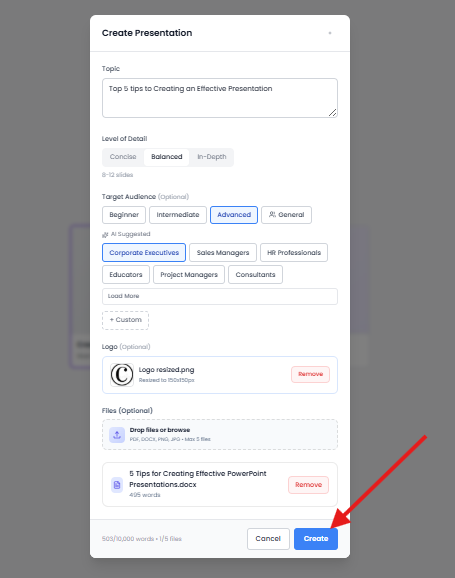
- Type in the topic or what the presentation is all about in the ‘Topic’ section.
- Depending on whether you prefer the slide to be in depth, very brief or concise, or a mix of both. Then choose either the concise, balanced or in-depth option.
- For the target audience, if you are presenting to beginners in your professional field, or business sphere then choose the ‘beginner’ option. When preparing for experts or advanced professionals, choose the ‘advanced option. The ‘intermediate’ option and general option fits the mid-career and varying range of audience respectively.
- In case your company has a logo or you have one you want to insert on the slides, then upload the logo in the ‘logo’ section. PNG, SVG, WEBG, and JPG are the only accepted versions.
You can always convert the logo you have to these accepted extensions in case you have a logo with a different extension other than the mentioned ones.
- In the ‘files’ section upload texts, images, or other files you want to upload to ensure this Free AI PPT creator generates great presentation slides for you. You can only upload up to 5 files per presentation.
- Thereafter click the ‘create’ button.
Let’s try a demo.
Create PowerPoint with AI Practical Demonstration
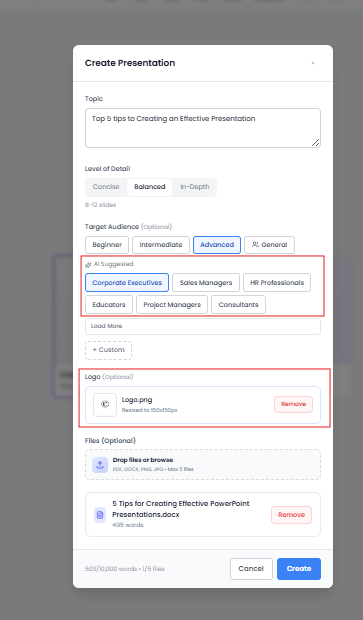
Now, you will notice that once the topic is inserted, and the audience is chosen (with targeted audience being advanced), there are AI suggestions to help you make the slides more personalized. Hence, you can ensure it suits your audience.
Further, you will notice the logo should have a dimension of 150 x 150 px. Hence you might need to resize your logo. There are several out there, but you could try imageresizer to resize your image for free.
After that is done, you would see we can now create our slide.
Editing & Customizing Slides to Make Slides Automatically
Next, you will be prompted to choose a theme. Here we choose a clean and professional design. Then click ‘continue with the theme’.
And there you go. slidemaker.app/ make slides automatically for you.
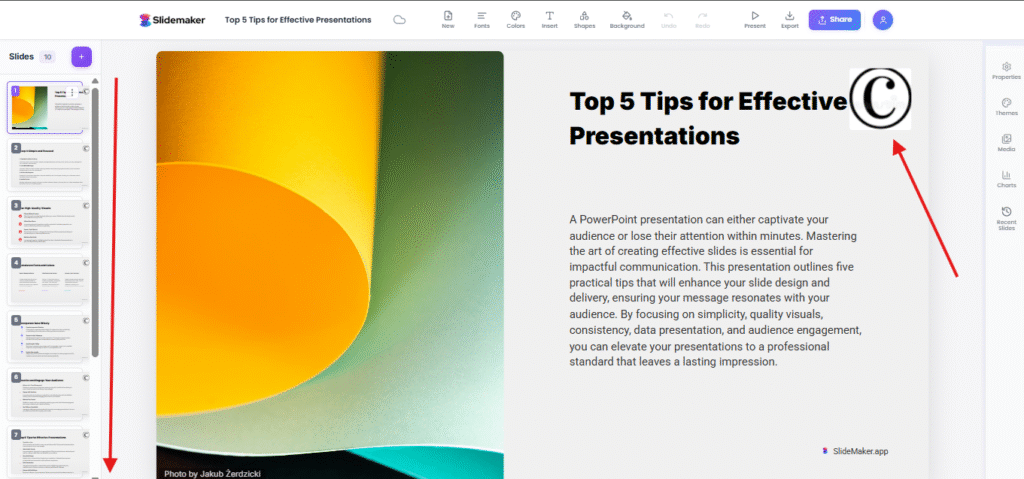
You will see the logo already appended to the slides. You will also see all the slides page by page. You can also choose to make some tweaks to make it more beautiful and like what you desire.
Features of slidemaker.app/ AI for Business Presentations
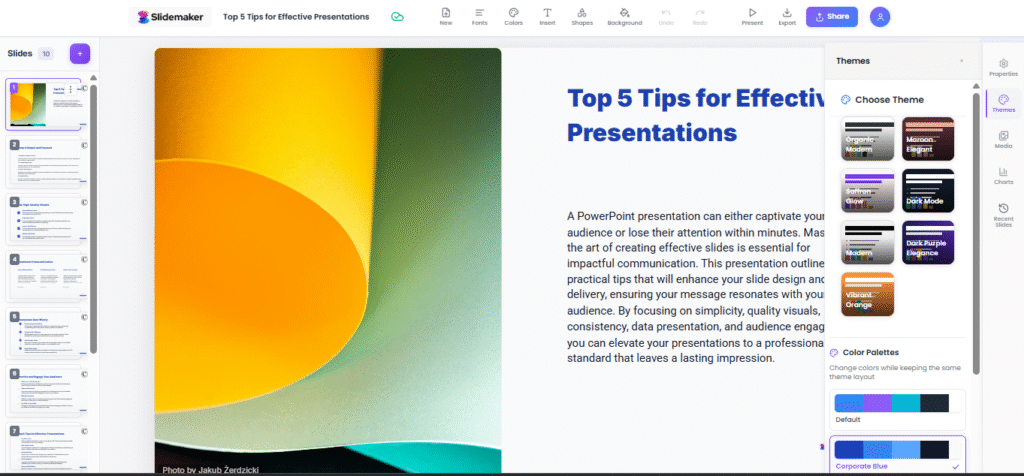
You can start by clicking on the ‘theme’ to change the theme if you do not like the current one or to change the color palette, like below.
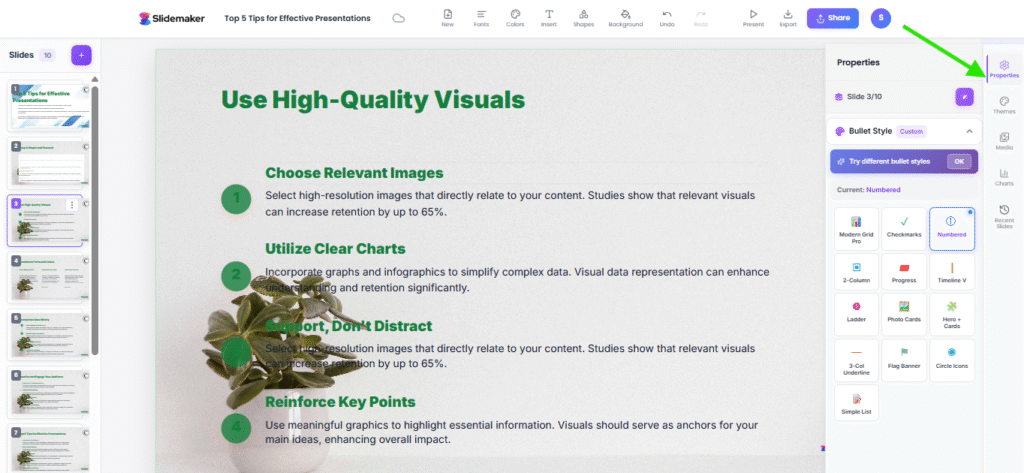
On the properties panel you can also see all the features of your current slides. Ranging from the slide number, the kind of bullet styles used. You can change the bullet style or numbering, You can also add some other features in this panel.
In case you need to upload a media, you can do it in this media panel. For instance you will see the logo we uploaded under this panel.

Adding charts to be able to persuade your business counterparts or executives, or audience is also possible. You can see an example below.

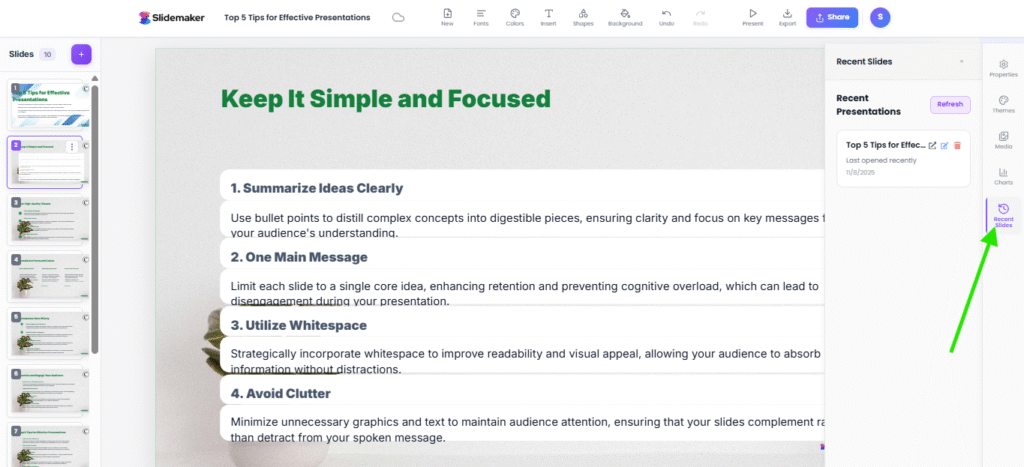
If you have been using this app several times and perhaps need to use details from previous slide, you can click the ‘recent presentation’ on the right panel.
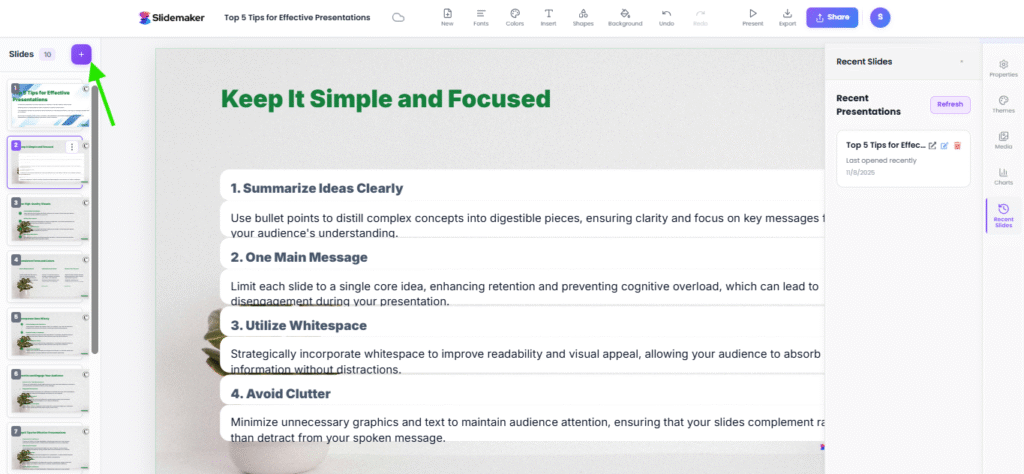
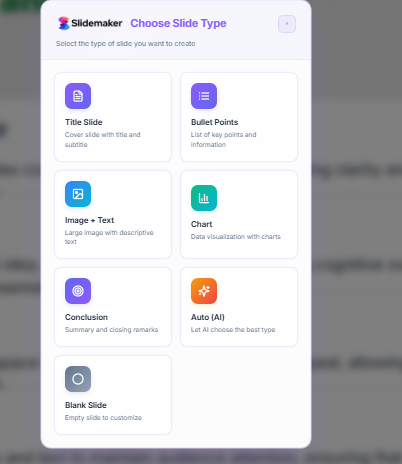
If you need to add more slides, click the ‘+’ icon then choose the type of slide that suits what you want.
You either add a title, slide, an image slide, conclusion, chart, or even a blank slide.
Features of the Upper Panels of slidemaker.app/ an AI PowerPoint Generator
In the upper panel, you could edit the font in the font panel. Whether the title or the body fonts. One can also change the font sizes. Equally one can alter both title and text colors in the color panels.
An interesting part of all this is that you can insert shapes and tables with the next two panels. The insert panel allows you to insert tables. While the shapes allow you to insert basic shapes, arrows, lines, special shapes, and triangles.
Just like in the image below you can add background color from the background panel or even pick a gradient of colors.

In case you want an independent image or company image as the background you always upload that.
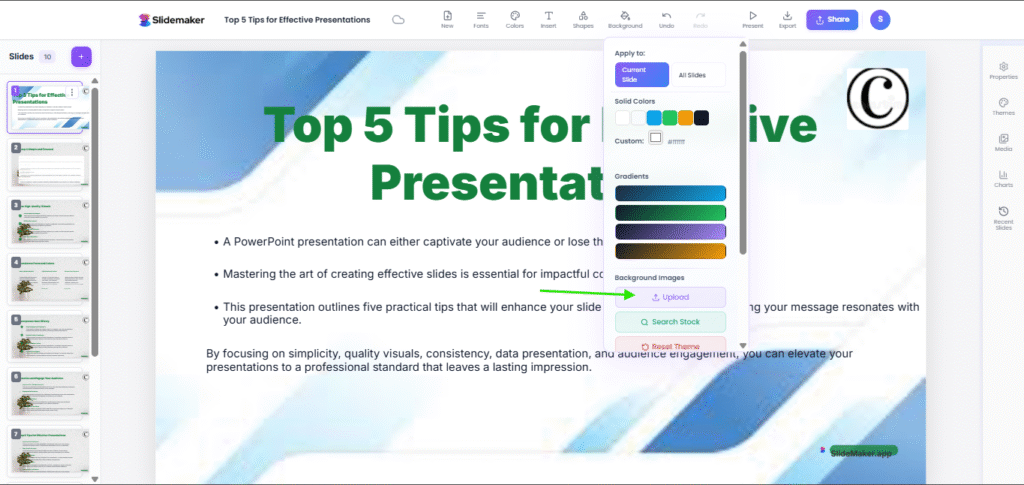
You can see the background uploaded.
But you need to login to be able to upload your personal background image. This is for security or safety concerns. We already explained how you can create an account earlier in this guide.
Exporting and Sharing Your AI Generated Presentation
After all the tweaking, ensure you do your best to click the ‘present’ option. So that you see the slides in full screen and you are able to further make corrections on whatever slide you want.

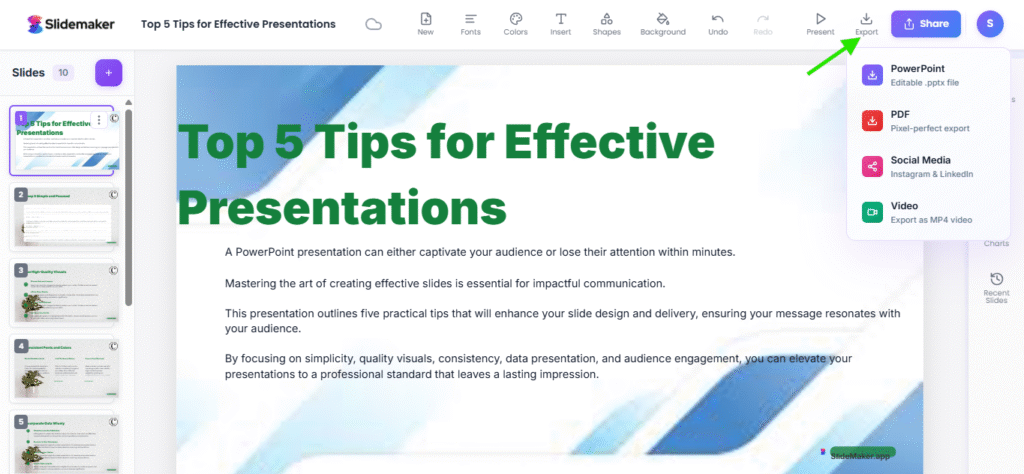
Thereafter you can click the ‘export’ icon. Clicking the export icon, you will see, you can export in the PDF, PPT, and Video formats. You can further share it on social media.
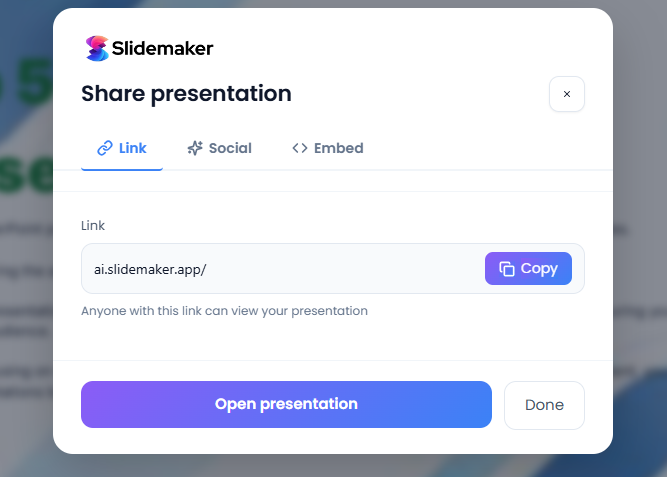
Get the link to share on social media by clicking the ‘share’ icon beside the export icon or share directly on social media.
Who Benefits and Typical Use-Cases?
| User Group | Benefit | Typical Use-Cases |
| Students & Academics | Instantly outlines complex research papers. | Thesis defense slides, lecture summaries, project reports. |
| Business Professionals | Rapidly drafts polished, on-brand materials. | Sales pitch decks, quarterly reports, internal training materials. |
| Marketers & Sales Teams | Converts long-form content into engaging visuals. | Product launch presentations, market analysis, client proposals. |
| Trainers & Educators | Saves time on preparing visual aids for sessions. | Workshop materials, new employee onboarding, course curriculum. |
Real Use Case Examples
The speed and quality of AI-generated slides make it indispensable across various professional sectors:
- Academic Presentations: A doctoral student copies their literature review into SlideMaker. In under a minute, they have the core slides for their progress update, saving them a day of reformatting dense text.
- Business Pitch Decks: A startup founder needs to quickly tailor their pitch for a new investor. They copy-paste the “Problem/Solution/Market” summary into the AI, which generates a fresh, visually-strong deck ready for minor customization.
- Sales and Marketing Reports: The marketing team needs to present last quarter’s campaign results. They paste their performance data summary, and the AI not only generates the slides but also suggests which data points would be best represented as charts, saving them the manual creation time.
FAQs
Q: Can I add my own images?
A: Yes, most modern AI presentation makers, including slidemaker.app/, offer the functionality to upload your own images to personalize your slides and integrate company logos or proprietary graphics.
Q: Can I export without a watermark?
A: This depends on your subscription level. Free AI PPT creators often include a watermark, while paid or Premium plans typically offer unlimited, watermark-free exports in high-quality formats. For the Slidemaker, there is a watermark.
Q: How many slides can be generated?
A: SlideMaker typically offers 10 slides for a single generation with a free account. But you can choose to add more slides. This is one advantage Slidemaer.app gives over many other AI presentation maker.