
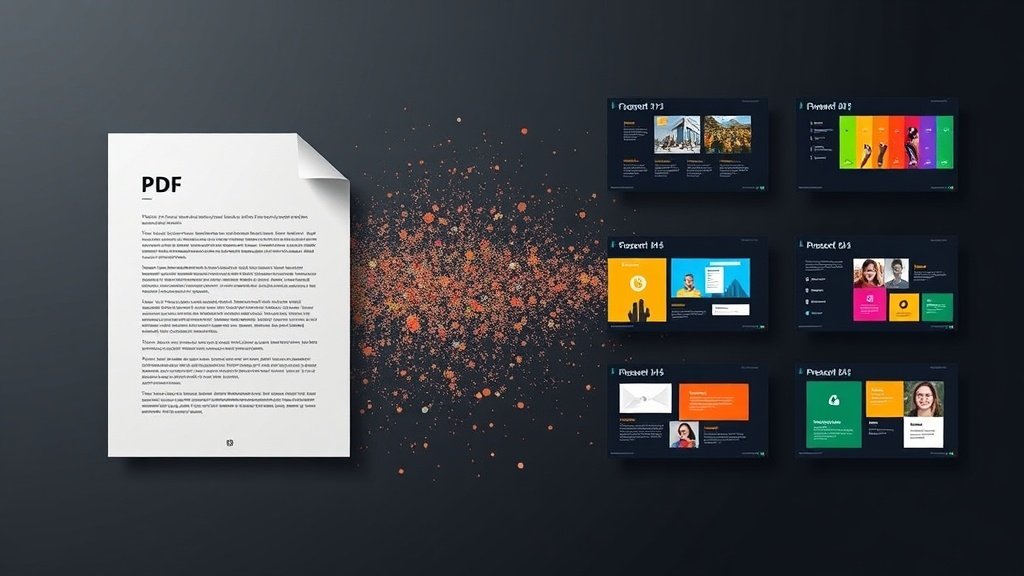
Why PDF-to-Presentation Conversion Matters
The ability to convert PDF to AI presentation format addresses one of the most common friction points in business and academic workflows. PDFs are where information lives — reports, whitepapers, research papers, proposals, manuals, and meeting summaries. But when that information needs to be presented to an audience, PDFs do not work. They are dense, text-heavy, and designed for reading, not for projection.
The traditional workflow is painful: open the PDF, read through it, manually extract key points, open a presentation tool, create slides one by one, format each slide, and hope the result captures the source material accurately. This takes 1-3 hours depending on the document length.
AI changes this by reading the PDF, extracting the important content, organizing it into a slide structure, and generating a complete presentation. The same task takes under a minute for the generation and 10-15 minutes for review and editing.
How PDF-to-AI-Presentation Conversion Works
The conversion pipeline handles several steps automatically:
Text extraction. The AI reads the text content from the PDF. This works well with text-based PDFs (created from Word, LaTeX, or other document tools). Scanned PDFs require OCR (optical character recognition) first — some tools handle this automatically, others require a pre-processed PDF.
Content analysis. The AI identifies the document’s structure — headings, sections, key points, supporting details, and conclusions. It distinguishes between main arguments and supporting evidence, which determines what goes on slides versus what gets summarized or omitted.
Slide mapping. Each major section or key point becomes a slide or group of slides. The AI decides how to split content: a dense section might become 3-4 slides, while a brief section becomes one. The goal is one main idea per slide with supporting details that can be read at a glance.
Design application. Layout, fonts, colors, and spacing are applied to create slides that look intentionally designed. The output should be clean and readable — not a wall of text copied from the PDF, but a genuine presentation of the content.
Export. The finished presentation is available as a .pptx file (for PowerPoint), PDF (for distribution), or browser-based presentation. The full document-to-presentation conversion workflow covers the details for different input types beyond just PDF.
What Types of PDFs Convert Well
Reports and whitepapers. These have clear section structure, distinct headings, and content organized around key findings or recommendations. AI handles these well because the structure is explicit.
Research papers. The standard structure (abstract, introduction, methods, results, discussion) maps directly to a presentation flow. AI extracts each section and creates corresponding slides.
Business documents. Proposals, strategic plans, and project documentation convert effectively because the content is typically organized around objectives, approaches, and outcomes — all of which translate naturally to slides.
Meeting notes and summaries. Even loosely structured documents convert reasonably well. AI identifies the key topics and organizes them into a logical slide sequence. Converting concepts into visual slides works even when the source material is informal.
What converts poorly: Image-heavy PDFs with minimal text (the AI has little to extract), scanned documents with poor OCR quality, spreadsheet-based PDFs (tabular data needs specialized handling), and PDFs that are essentially slide decks already (the conversion adds no value).
Getting the Best Results
Use text-based PDFs. If the PDF was created from a word processor or document tool, it contains extractable text and the conversion will be clean. If it was created from a scan, the text quality depends on OCR accuracy.
Longer documents benefit more. Converting a 2-page PDF to slides saves minimal time — the content is short enough to build slides manually in 10 minutes. Converting a 20-page report saves substantial time because the AI handles the extraction, organization, and formatting of a large amount of content.
Specify what to emphasize. If the tool allows additional instructions alongside the PDF upload, specify the focus. “Focus on the recommendations in Section 4” or “This is for a 10-minute summary for executives” helps the AI produce more targeted output.
Expect to add visuals. AI extracts text content from PDFs but generally does not transfer images, charts, or diagrams. Plan to add key visuals from the original document (or create new ones) during the editing phase.
Review for accuracy. AI summarization can occasionally miss nuance or compress two distinct points into one. Read through the generated slides against the source PDF to verify that the content is accurate and complete. The time savings from AI generation include the editing time — budget 10-15 minutes for review.
Step-by-Step Process
Step 1: Open an AI presentation tool that supports document upload. SlideMaker accepts text input and generates slides in under a minute.
Step 2: Upload the PDF or paste the key sections of text from the document.
Step 3: Generate the presentation. The AI produces a complete slide deck based on the document content.
Step 4: Review the structure. Check that the AI captured the main points and organized them in a logical order. Rearrange slides if needed.
Step 5: Edit individual slides. Focus on the title slide, key findings, and conclusion. Add any figures or charts from the original document.
Step 6: Export. Download as PowerPoint for editing in other tools, or PDF for distribution.
Use Cases by Role
Executives: Convert a lengthy report into a 10-slide summary for a board meeting. The AI extracts the key findings and recommendations, skipping the methodology and supporting details.
Consultants: Convert a project deliverable into a client presentation. The work product is already written; AI reformats it for presentation to the client.
Researchers: Convert a paper into conference slides. The research is done; the AI handles the slide formatting. The 2026 tool comparison includes notes on which tools handle academic content best.
Students: Convert reading materials or notes into study presentation. The AI organizes content into review-friendly slide format.
Teachers: Convert curriculum documents or textbook sections into lecture slides. The content exists in document form; AI restructures it for classroom delivery.
How to Convert PDF to AI Presentation: Five Minutes or Less
The practical process to convert PDF to AI presentation format is simpler than most users expect. The main variable is the quality of the source PDF — everything else is handled by the tool.
For a standard business report or research paper, the workflow takes under five minutes of user time. Open the AI presentation tool, upload the PDF or paste the key sections of text, trigger the generation, and wait 30-60 seconds for the output. The tool extracts the main sections, writes slide-appropriate summaries of each, and applies a clean visual layout. The result is a complete first draft.
The review phase — scrolling through the slides to check structure, accuracy, and completeness — takes another 5-10 minutes. For most PDFs, 70-80% of the generated slides are accurate and usable. The remaining 20-30% may need text adjustments, reordering, or the addition of specific visuals that the PDF contained but the AI could not extract.
Total time to convert PDF to AI presentation format into a usable, presentation-ready deck: 15-20 minutes for a 20-page document. Compare this to the traditional manual approach — reading the full PDF, extracting key points, building slides one by one — which typically takes 90 minutes to 3 hours for the same document length. The productivity difference is significant enough to change how professionals approach any content that exists in PDF form.
For additional context and industry research, see Wikipedia on PDF format.
FAQ
Can AI convert a scanned PDF to a presentation?
It depends on the tool and the scan quality. Some tools run OCR automatically on scanned PDFs. For poor-quality scans, running OCR separately first (using Adobe Acrobat or a dedicated OCR tool) and then uploading the processed PDF produces better results.
Does the AI preserve the formatting from the original PDF?
No — and that is intentional. PDF formatting is designed for reading; slide formatting is designed for projection. The AI extracts the content and applies presentation-appropriate formatting: larger fonts, fewer words per slide, and cleaner layouts.
How long can the PDF be?
Most tools handle documents up to 50-100 pages. For very long documents, the AI may summarize more aggressively. For a 100-page report, consider uploading the executive summary or specific chapters rather than the full document.
Can the AI handle PDFs with tables and charts?
Text from tables is usually extracted but may lose its tabular formatting. Charts and images embedded in PDFs are generally not transferred — plan to re-insert key visuals during the editing phase.