
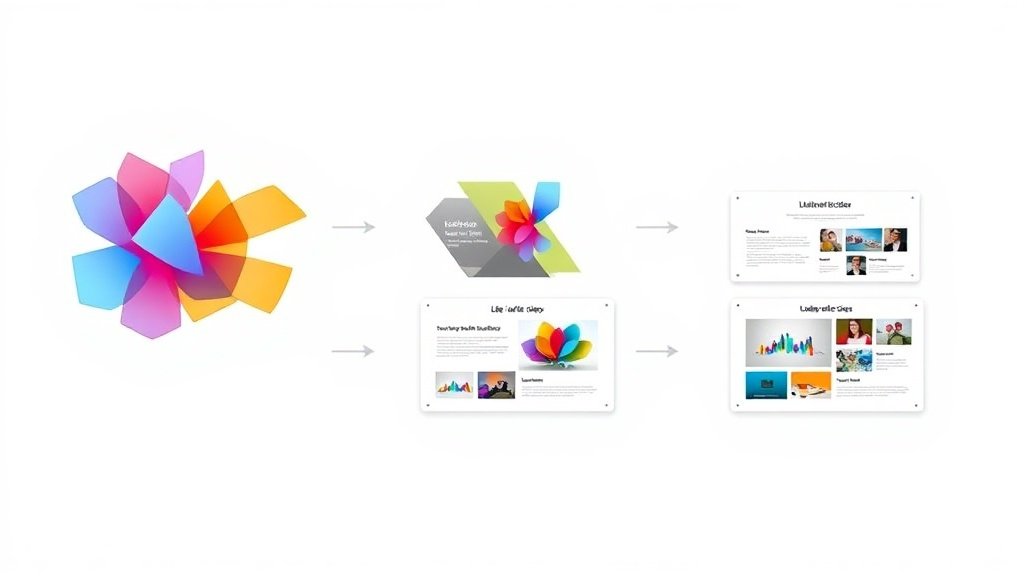
Professional Slides Start With the Right Input
Understanding how to make professional slides with AI comes down to one insight: the gap between amateur-looking and professional-looking AI output is almost entirely about input quality. The same tool that produces a generic, surface-level deck from “marketing presentation” will produce a sharp, specific deck from a detailed brief or a set of meeting notes.
This guide covers the practical steps for getting professional results from AI slide generators — not theoretical capabilities, but the actual process that produces output good enough for client meetings, team presentations, and conference talks.
Step 1: Prepare the Input Material
The single most important step happens before the AI touches anything.
Start with existing content. Meeting notes, project briefs, report sections, email threads, research summaries — any existing text that contains the substance of what the presentation should cover. Do not try to write a perfect prompt from scratch. Paste in the real content.
Include context the AI cannot infer. Who is the audience? What is the goal of the presentation? What is the key takeaway? Adding a sentence or two of context at the top of the input dramatically improves the output. Example: “This is for a quarterly business review with the VP of Sales. Focus on the pipeline growth in Q1 and the three new enterprise accounts.”
Organize loosely. If the input has a natural order — chronological, problem/solution, before/after — make that order visible in the text. The AI will follow the structure it detects. Numbered lists, headers, or even paragraph breaks that signal different sections help.
For document-based presentations, uploading the file directly is the fastest path. Converting a document to a presentation skips the copy-paste step and lets the AI work with the complete source material.
Step 2: Generate the First Draft
With the input prepared, the generation step is straightforward:
Choose the right tool. For speed and simplicity, SlideMaker takes a topic or pasted content and generates a full deck in under a minute. No account required. For a comparison of available options, the 2026 tool roundup covers the major platforms.
Paste or upload the input. If using pasted text, include the context line and the source content. If uploading a document, the AI handles the extraction.
Generate. Let the AI produce the complete deck. Resist the urge to micro-manage the generation with very specific slide-by-slide instructions on the first pass. Let the AI show its interpretation of the content, then adjust.
The first draft is a starting point. Expect 70-80% of it to be usable. The editing phase is where the human judgment turns a good first draft into a professional presentation.
Step 3: Review the Structure Before the Details
Before changing any individual slide, evaluate the deck as a whole:
Does the flow make sense? Read the slide titles in sequence. Do they tell a coherent story? If the order is wrong, rearrange slides before editing content.
Are any slides redundant? AI sometimes generates overlapping slides — two slides that make essentially the same point with slightly different language. Merge or delete the weaker one.
Is anything missing? Check whether the AI captured all the key points from the input. If a critical topic was skipped, add a slide for it. Missing content is easier to catch at the structural level than after diving into individual slide edits.
Is the depth appropriate? A 10-minute presentation needs 8-12 slides. A 30-minute presentation needs 20-30. If the deck is too long or too short for the time slot, adjust the scope now.
This structural review takes 2-3 minutes and prevents wasted time editing slides that should be removed or reordered.
Step 4: Edit the Slides That Matter Most
Not every slide needs the same level of attention. Focus editing time on the slides that carry the most weight:
Title slide. This sets the first impression. Make sure the title is clear and specific, not generic. “Q1 Pipeline Review: 23% Growth” is better than “Quarterly Update.”
Key message slides. The 2-3 slides that contain the presentation’s core points. These need to be tight — one clear idea per slide, no wall of text, strong headings.
Data slides. If the presentation includes numbers, verify them. AI can approximate or hallucinate statistics. Every number in a professional presentation should be confirmed against the source.
Closing slide. The final slide should have a clear call to action or summary. AI tends to generate generic closings (“Thank you” or “Questions?”). Replace with something specific to the presentation’s purpose.
Middle slides that are 90% right can stay as-is for most presentations. Perfectionism on every slide is the enemy of the time savings that AI provides. The goal is transforming concepts into visual slides efficiently, not spending the same amount of time on a different set of tasks.
Step 5: Polish the Visual Design
After the content is right, check the visual quality:
Font readability. If the slides will be projected or shared on screen, text needs to be large enough to read at a distance. Minimum 24pt for body text, 30pt+ for headlines. If the AI used smaller fonts, increase them.
Consistent styling. Check that fonts, colors, and layouts are consistent across all slides. AI tools are generally good at this, but occasionally produce a slide that deviates from the deck’s design language.
White space. Crowded slides are the most common design problem in AI-generated decks. If a slide feels dense, remove a bullet point, split it into two slides, or increase the margins. Professional slides have breathing room.
Image relevance. If the AI inserted images, verify they support the content rather than just filling space. Remove decorative images that add nothing. For tools available without signup, free AI presentation makers offer a quick way to test image handling before committing.
Step 6: Export and Verify
The final step is exporting and checking the output:
Export in the right format. PowerPoint (.pptx) for editing and presenting in Microsoft environments. PDF for distribution where editing is not needed. Google Slides via .pptx import for Google Workspace teams.
Open the export and check formatting. Font substitutions, spacing shifts, and layout changes can occur during export. Open the file in the target application and scroll through every slide. Fix any formatting issues in the target application.
Test on the presentation setup. If presenting on a projector or specific display, test the file on that setup before the actual presentation. Resolution differences and aspect ratio mismatches are easier to fix in advance than in front of an audience.
How to Make Professional Slides With AI: Common Mistakes to Skip
Knowing how to make professional slides with AI is partly about the right steps — but equally about avoiding the mistakes that produce mediocre output even from strong tools.
The most common mistake is using the AI output without any editing. Even the best AI-generated deck needs a human review. Slide titles should be specific, not generic. Key data points should be verified. The opening and closing slides should reflect the actual presentation context, not a template phrase.
The second common mistake is over-editing. If editing takes as long as the original deck would have taken to build manually, the tool is not being used correctly. AI is most valuable when it handles the 70-80% that is structural and repetitive, while the human handles the 20-30% that requires judgment. Trying to achieve perfection on every slide defeats the purpose.
The third mistake is ignoring the first-paragraph rule: the opening slides of any AI-generated deck often need the most attention. They set the context for everything that follows. Spending 3-5 minutes on the title slide, agenda, and first content slide — and leaving the middle slides largely as-is — produces a more professional result than spreading editing time evenly across the entire deck.
Following these principles on how to make professional slides with AI consistently produces output that is presentation-ready in under 20 minutes, including generation and editing.
For additional context and industry research, see Canva presentation design guide.
FAQ
How long does the entire process take?
From input preparation to final export: 10-25 minutes for a 15-slide professional deck. The AI generation takes under a minute. Input preparation takes 2-5 minutes. Editing and review take 5-15 minutes depending on how much adjustment is needed.
Can AI slides match the quality of a professional designer?
For standard business presentations, the quality is comparable. For high-end brand presentations, editorial layouts, or custom visual design, a professional designer still produces superior results. The sweet spot for AI is the 80% of presentations that need to look professional but do not justify designer time.
What if the AI misses the point of the presentation?
This usually means the input was too vague. Add more context — specifically the audience, the goal, and the key message — and regenerate. The more the AI knows about what the presentation should accomplish, the better it structures the content.
Should professional presentations be built entirely with AI?
The best results come from a human-AI collaboration: AI generates the first draft and handles the structural/formatting work, while the human provides judgment, verifies facts, refines messaging, and adds the specific details that make the presentation land with its audience.